Quick answer
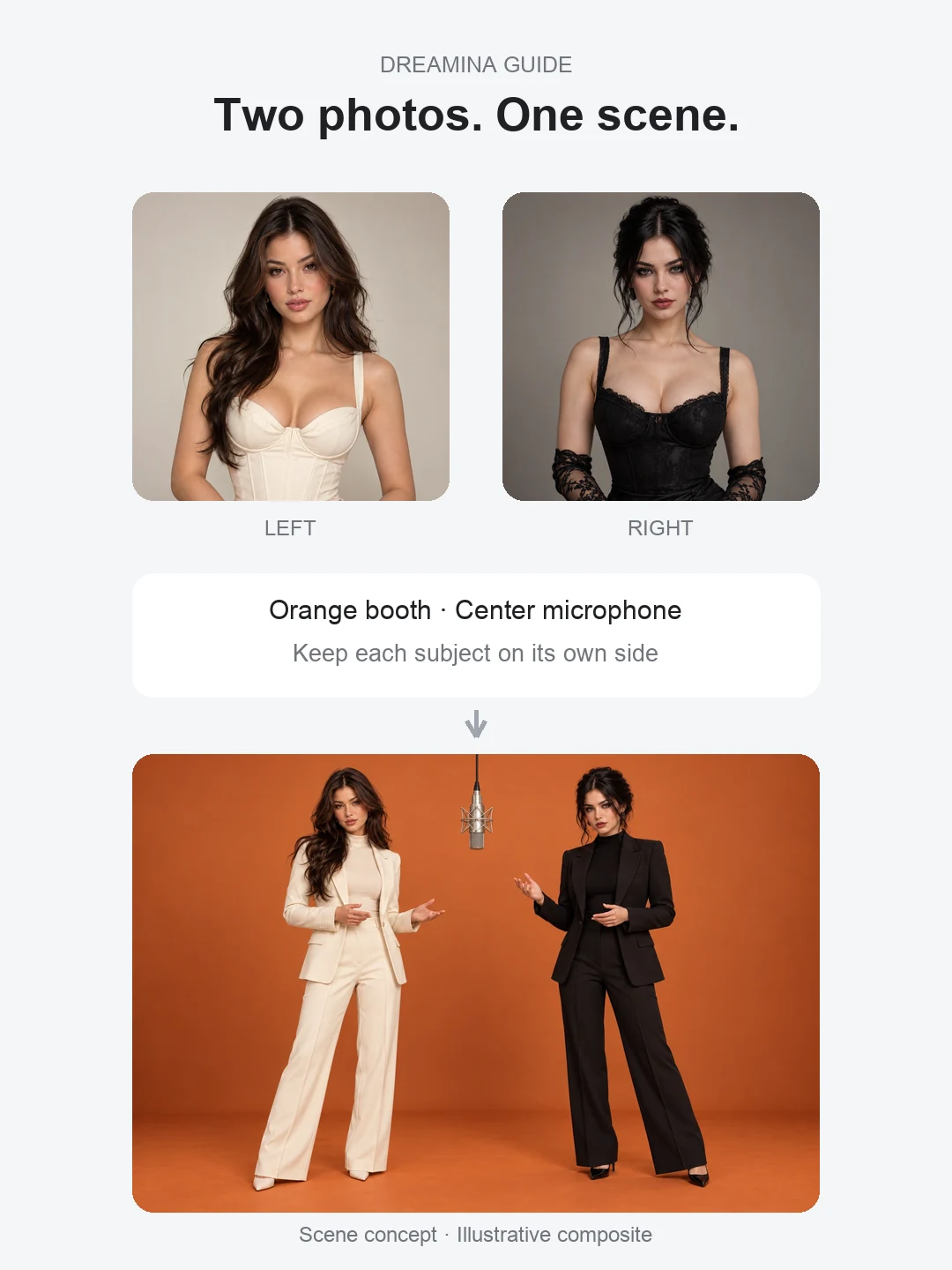
Dreamina’s official Hotel Lobby guide currently recommends Seedance 2.5, two separate subject photos and a clear two-performer prompt. The guide says to choose who stays left and right, use a vertical 9:16 canvas for the social format, then review identity and timing across the whole result. See Dreamina’s official Hotel Lobby guide for the current workflow.[1]
Which Dreamina workflow should I use?
For the simplest version, follow Dreamina’s own Hotel Lobby page: prepare two separate photos, select Seedance 2.5, upload the references and describe the orange two-performer scene in one prompt. Dreamina’s general Seedance 2.5 page describes support for image, video, audio and other multimodal references when you need more control.[2]
You do not need to start with a copied source clip just to communicate the format. Dreamina’s Hotel Lobby guide specifically highlights the orange cyclorama, centered microphone, static camera and alternating gestures as the recognizable visual conventions.
How do I make the Hotel Lobby AI trend with Dreamina?
Choose two separate photos
Use one authorized image per subject. Dreamina recommends front-facing or three-quarter views with even lighting, unobstructed faces, visible clothing and as much body detail as practical. Decide left and right before writing the prompt.
Open Dreamina and select Seedance 2.5
Use the current AI video workflow and upload both image references. If the interface changes, follow the controls shown in the live generator rather than an old screenshot.
Describe one simple Hotel Lobby-style scene
Keep the first attempt focused: two performers, warm orange studio, centered hanging microphone, mostly static camera and alternating gestures. Use a vertical 9:16 canvas when your target is TikTok or Reels.
Generate and inspect the whole clip
Check that the left and right identities remain stable, hands and feet look natural, only the intended performer leads at each moment, and the subjects do not merge during overlap.
Revise the smallest failing detail
If one subject changes sides, make the left/right instruction stronger. If a face drifts, replace that subject’s reference image before adding more scene details.
These steps follow Dreamina’s Hotel Lobby AI video trend guide, with additional troubleshooting notes for a two-subject workflow.[1]
What prompt should I use in Dreamina?
Keep the first prompt specific enough to assign the two subjects, but short enough that the model is not juggling unrelated changes. This is our starting prompt, not an official Dreamina preset:
Create a vertical Hotel Lobby-style performance video with two performers in a warm orange recording booth and one hanging microphone centered between them. Keep the subject from the first reference on the left and the subject from the second reference on the right throughout the clip. Preserve each subject’s identity, clothing and proportions. Use a mostly static camera with alternating natural hand gestures and short turns toward the microphone. Do not merge the subjects, swap their faces or add extra performers.
If you add a motion, style or audio reference, use material you have permission to upload and publish.
How do I stop the two Dreamina characters from mixing?
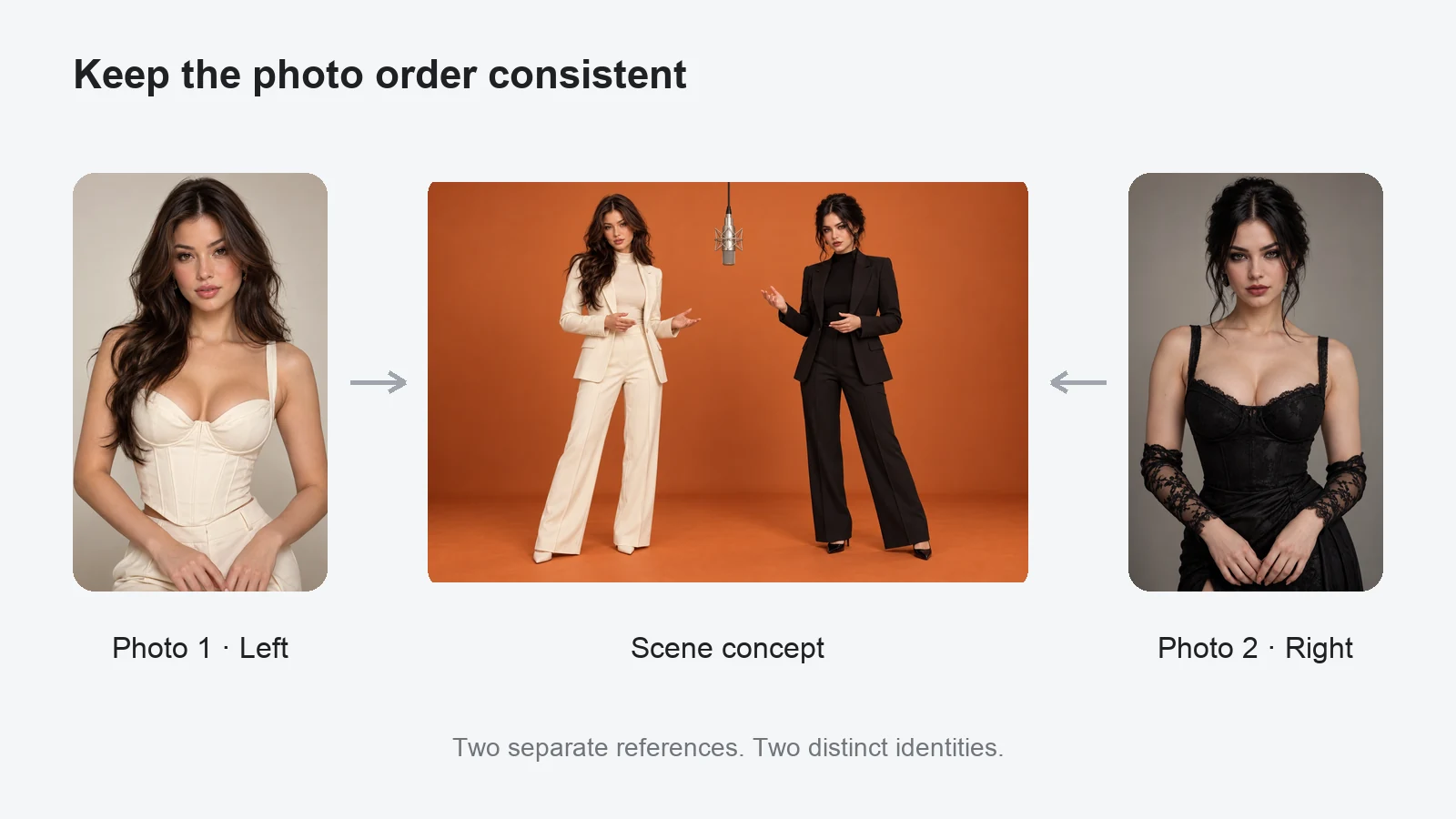
Start with references that make the two subjects easy to distinguish. Use one person or pet per photo, keep faces uncovered, and avoid screenshots with captions or interface controls. Then state the left/right assignment once, clearly, in the prompt.
Dreamina’s Hotel Lobby guide specifically tells creators to verify that faces do not merge and subjects do not switch sides after generation. That is a useful final check because a good opening frame does not guarantee identity stability through the full clip.
Do I need a reference video in Dreamina?
No, not for the basic two-photo workflow in Dreamina’s Hotel Lobby guide. The page shows a prompt-led Seedance 2.5 approach from two image references. If you need more exact motion guidance, Dreamina also publishes a Seedance 2.5 reference-to-video guide that covers motion, style, image, audio and storyboard references.[3]
A reference-to-video feature is a technical capability, not permission to reuse any clip you find online. Use footage and audio you own or are licensed to use.
Is Dreamina free for the Hotel Lobby AI trend?
Dreamina currently markets Seedance 2.5 with a free entry point, but generation credits, limits, queue priority and export conditions can change by account or product update. Check the live Dreamina generator before relying on a fixed number of free renders. The official Seedance 2.5 page is the best place to confirm current access.[2]
What if I only want to upload two photos and generate?
Dreamina is useful when you want to write the scene yourself and experiment with Seedance references. If you would rather skip model selection and prompt setup, Hotel Lobby AI Generator provides a prepared two-photo workflow with separate left and right uploads. It is an independent service and is not affiliated with Dreamina or CapCut.
See our two-photo tutorial for the exact upload, checkout and download flow on this site.
Dreamina Hotel Lobby questions
Which Dreamina model makes the Hotel Lobby AI trend?
Dreamina’s official Hotel Lobby guide currently tells users to select Seedance 2.5 and upload two subject references.
Can I use two different people or pets?
Yes. Use one clear reference per subject and specify which one stays on the left and which one stays on the right.
Does Dreamina need the original Hotel Lobby video?
No. Dreamina’s specific Hotel Lobby guide presents a two-photo, prompt-led workflow. Seedance 2.5 also offers reference-to-video features if you have authorized motion footage you want to use.
What aspect ratio should I use?
Dreamina’s Hotel Lobby guide recommends a vertical 9:16 canvas for the social format. Choose another format only when your destination needs it.
Is Hotel Lobby AI Generator connected to Dreamina?
No. This is an independent guide. Hotel Lobby AI Generator and Dreamina are separate services with separate accounts, pricing and generation systems.
Sources
Two photos. No prompt setup.
Make your Hotel Lobby AI video
Use a prepared performance workflow with separate left and right subjects.