
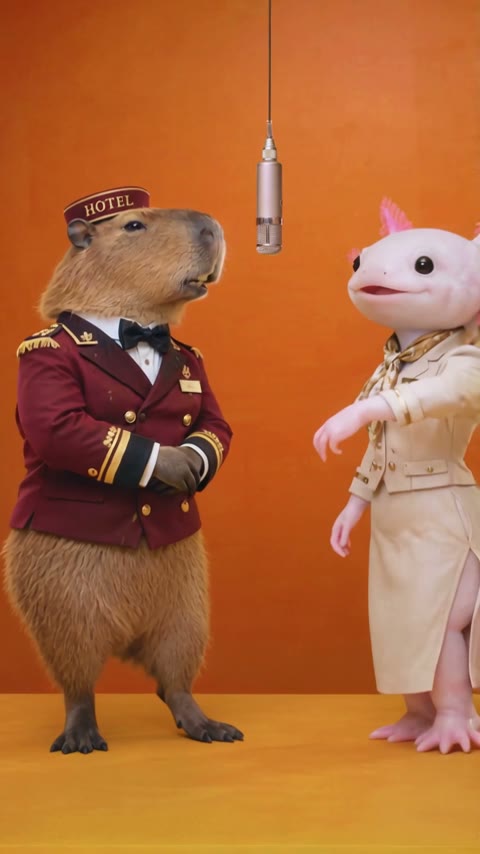
Start with two clear photos
You need one image for the performer on the left and one for the performer on the right. Each photo should show a single person or pet clearly. Hotel Lobby AI Generator accepts JPEG, PNG and WebP files, up to 10 MB per photo.
A close portrait gives the AI facial detail. A full-body photo also shows the outfit, body proportions and shoes. Choose the framing that includes the details you want in the result; details outside the photo may be generated differently.
 A clear portrait
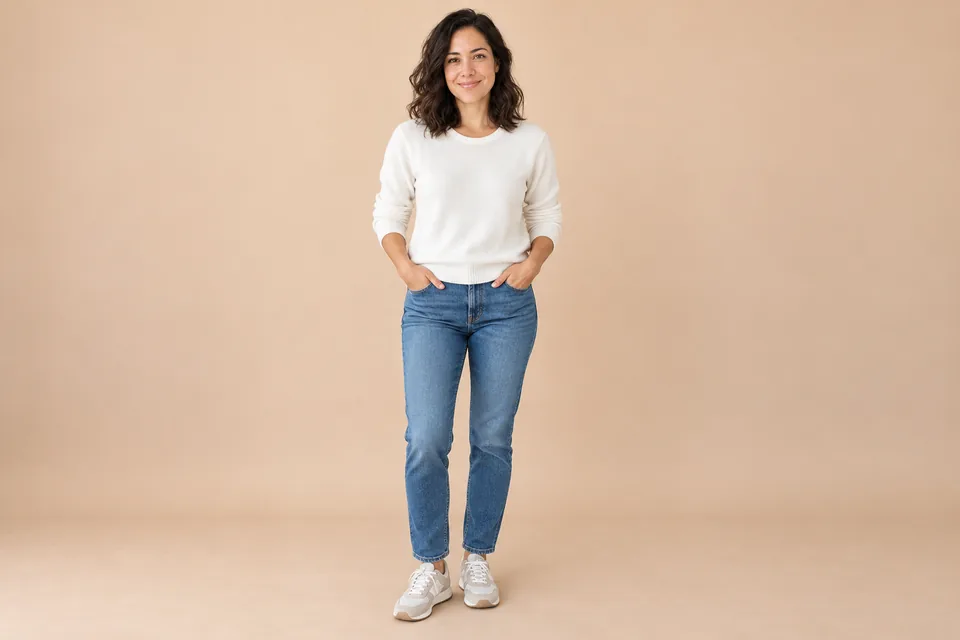 A clear full-body photo
Before uploading a screenshot, remove app buttons, captions and borders without cutting off the subject. See the photo guide for more examples.
Choose a single video or Studio
Both options turn two uploaded photos into a Hotel Lobby AI video. The difference is how you pay and which settings you can choose.
| Option | Single video | Studio |
|---|---|---|
| Sign-in | No sign-in required | Google sign-in |
| Payment | $7.99 for one video | Buy a one-time credit pack |
| Length | 15 seconds | 5, 10 or 15 seconds |
| Resolution | 720P | 480P, 720P or 1080P |
| Format | 9:16 or 16:9 | 9:16 or 16:9 |
| Find the result | Private order link and email | Create and History |
If you want to try one clip, start on the homepage. If you want a shorter clip, a different resolution or several videos, use Studio. Check current prices before purchasing.
Make one video without signing in
Upload your left and right photos
Open the homepage generator. Add the first photo to Left performer and the second to Right performer. Check both previews and their order before continuing.
Choose portrait or landscape
Select Portrait 9:16 for vertical viewing, or Landscape 16:9 for a wider frame. The single-video option produces a 15-second, 720P video.
Click Generate My Video and complete checkout
You will enter Waffo Checkout for a one-time payment. Double-check the email address you enter: your finished video link will be sent there. This purchase does not create a recurring subscription.
Follow the private order page
After payment, you return to your order page. It shows the task status while your video is being generated. Keep the private link if you want to reopen the page later.
Preview and download your video
When it is ready, preview the video and use the download button to save it. Online access is available for 20 days after upload, so download your copy before that period ends.
Create with more options in Studio
Open Studio and select Continue with Google. Use the same Google account each time to access your credits and video history.
Add credits to your account
Choose a 360-credit or 1,200-credit pack. The live price appears before checkout. Each purchase is one-time, with no automatic renewal. Credits are added after payment is verified and are valid for 365 days from that payment.
Choose your video settings
In Create, upload your two photos. Choose 5, 10 or 15 seconds, Portrait 9:16 or Landscape 16:9, and 480P SD, 720P HD or 1080P Full HD. The default is 15 seconds and 720P.
Check Cost per video, then generate
The displayed credit cost updates with your settings. Click Generate Video when you are ready. While the task is active, the button shows Generating… and prevents another submission.
Watch the result in Create or find it in History
The current-video area shows waiting, generation and saving states, followed by the player and Download video. You can leave the page and check the task in History later. Sign in with the same Google account to return to your videos.
Credit expiry and video storage are different: credits last 365 days, while uploaded and generated media are retained for the site's 20-day access period. Download finished videos promptly.
What if the video is still processing?
Generation time varies with the queue and the selected settings. Studio displays an estimated wait and elapsed time; these are not a guaranteed completion time. Saving your video means generation has finished and the file is being prepared for playback and download.
If a Studio task ultimately fails, the credits deducted for that task return to your balance, retaining their original expiry. A single-video purchase has a separate delivery process: we continue working to deliver the video if technical generation fails. Read the refund policy for the full terms.
If payment confirmation or a download fails, use the page's retry option, or reopen your order page or History. For an unresolved problem, contact support with your order ID. Keep your private access link out of public posts.
Common questions
Can I make one without an account?
Yes. The $7.99 single-video option on the homepage does not require sign-in. Studio uses Google sign-in.
Can I use a person and a pet?
Yes. Upload a separate, clear photo for each subject, with one person or pet per image.
Do I need to write a prompt?
No. The site provides the Hotel Lobby setup. You upload two photos and choose the settings available in your creation option.
Where will I find my finished video?
Single-video customers receive a private order link and a delivery email. Studio users can watch the current result in Create and find their records in History.
Does a new credit purchase extend my old credits?
No. Each new credit pack has its own 365-day expiry from payment. Earlier credits keep their existing expiry date.
Your photos. Your performers.
Make your own Hotel Lobby AI video
Choose two photos and start with a single video, or open Studio to pick your settings.