Quick answer
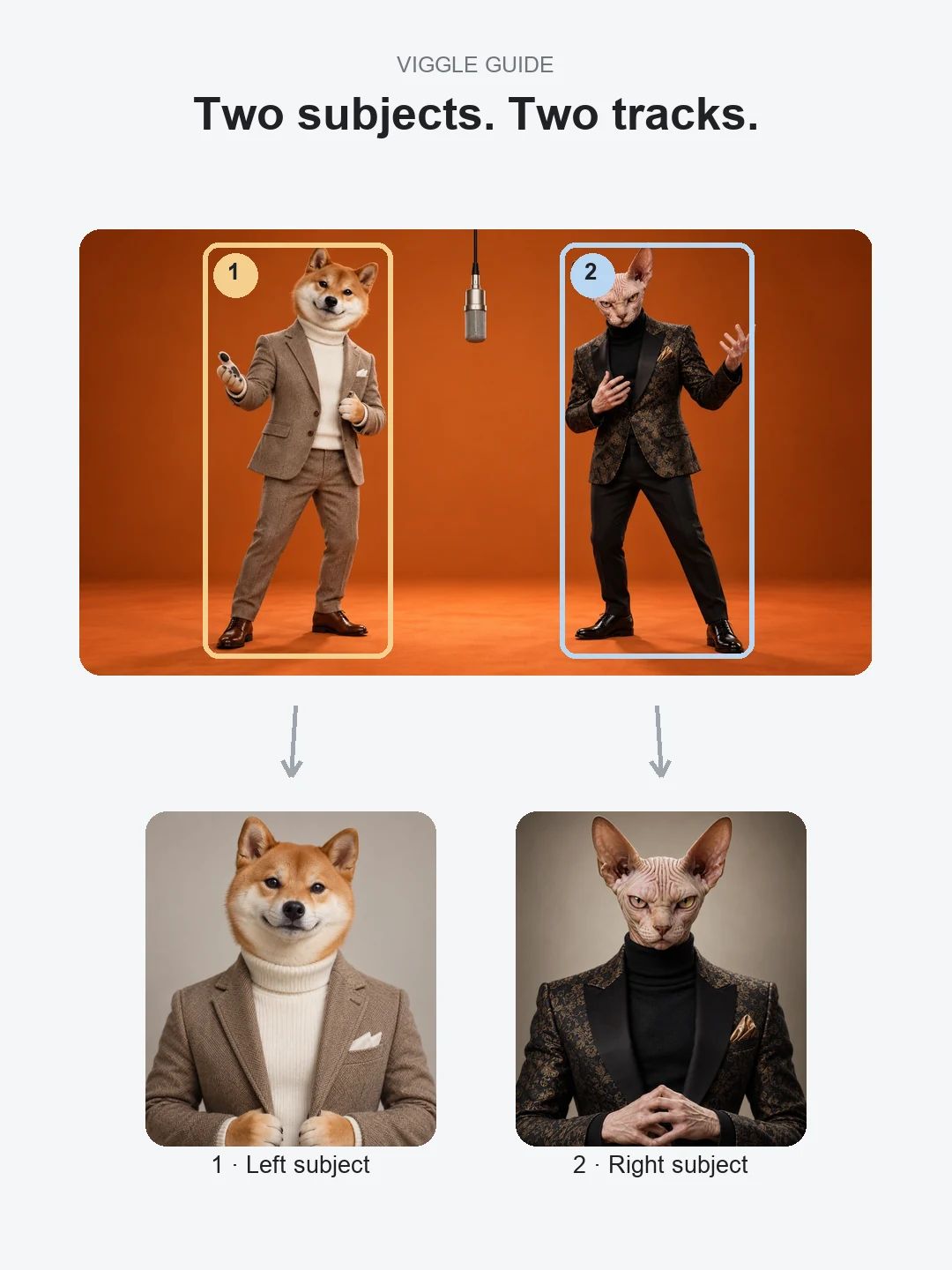
To make the Hotel Lobby AI trend with Viggle, use a multi-character workflow rather than a single-character swap. Viggle officially describes Multi[1] as placing several character images into a motion video, while its Multi-Track editor[2] can track multiple characters in one clip. Prepare one clear image for each performer, choose or upload a motion reference, map the subjects, then review identity and left/right consistency.
Which Viggle tool should I use for the Hotel Lobby trend?
Viggle’s official animation documentation separates its workflows by how many subjects and how much editing control you need. Mix puts one character image into a motion video. Multi is the documented option for several character images in one motion video. Viggle’s newer Multi-Track editor says it can animate, track and replace up to seven characters or objects in one video. See Viggle’s Animation Tools[1] and AI Animation Generator[2] pages for the current product names and limits.
For a two-person Hotel Lobby-style clip, start with Multi or Multi-Track if those options are available in your account. A one-character Mix workflow is better suited to replacing only one performer.
How do I make the Hotel Lobby AI trend with Viggle?
Prepare one image for each performer
Choose two separate images, each with one clearly visible subject. Decide who should occupy the left position and who should occupy the right before you open the editor.
Choose a Hotel Lobby-style motion source
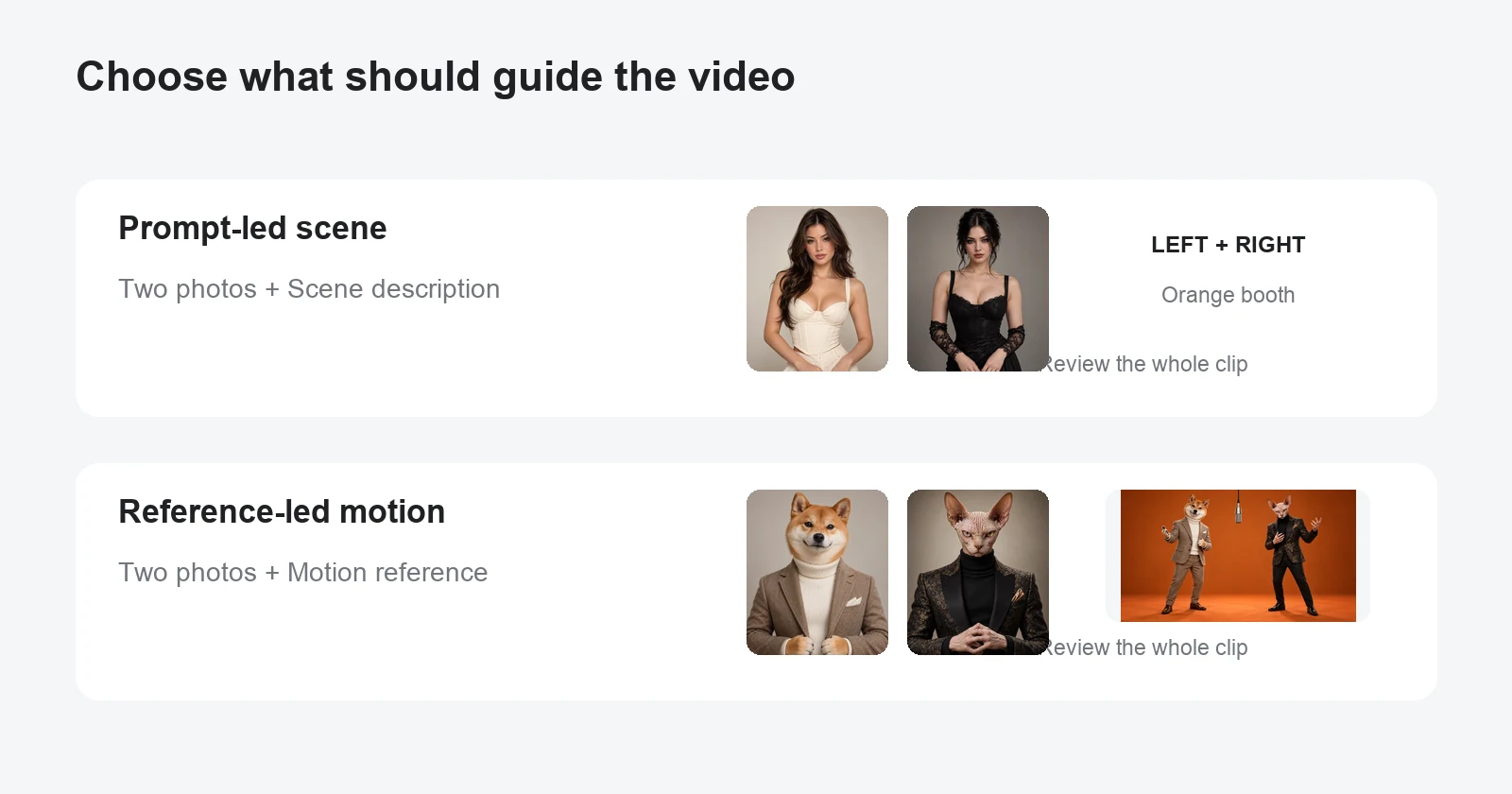
Use a motion template you are allowed to use, or upload your own reference video. Viggle says its animation workflow supports custom reference video uploads in addition to its template library.
Open Multi or Multi-Track
Add the motion video, identify the two performers in the source and assign a different character image to each track. Keep the assignments simple on the first attempt instead of changing the background, wardrobe and timing at the same time.
Generate and watch the entire result
Check more than the opening frame. Watch for face drift, subjects switching sides, clothing merging, missing limbs or a character disappearing when the performers overlap.
Export only after checking audio and rights
Review the soundtrack and the destination platform’s rules before posting. A character-swap workflow does not give you rights to music or footage you did not license.
What photos work best in Viggle for a two-person swap?
Use one subject per image, with the face unobstructed and enough clothing or body detail for the motion you want. A front-facing or three-quarter image is easier to map than a heavily cropped side profile. If your result repeatedly confuses the performers, first replace the less clear source image instead of adding a longer prompt.
Viggle’s body-swap page says its multi-person workflow tracks characters independently, which is exactly the control you want in a two-performer scene. See Viggle’s official body-swap guide[3] for the current Multi-Track description.
Can I upload my own reference video to Viggle?
Yes. Viggle’s official AI Animation Generator says creators can upload their own reference video instead of selecting a template; Viggle extracts the motion and applies it to the character workflow. That gives you more control over timing and staging than starting from a generic text prompt.
Use footage you own or have permission to reuse. If you want the general Hotel Lobby look without reusing protected footage, you can record or create your own two-performer motion reference with the framing and timing you need.
Is Viggle free for the Hotel Lobby AI trend?
Viggle currently advertises limited free creation on its AI Animation Generator page, including up to five animated videos per day for free users, while its Animation Tools terms describe daily free creation opportunities. Those limits and export conditions can change, so treat the live Viggle account screen as the source of truth before you start. See Viggle’s current generator page.[2]
What if I do not want to set up tracks or a reference video?
A general motion tool gives you more control, but it also asks you to prepare the motion source and map the characters yourself. Hotel Lobby AI Generator uses a prepared two-photo workflow: choose a left performer and a right performer, then generate without building the motion setup yourself. It is a separate service and is not affiliated with Viggle.
For the full upload-to-download flow on this site, see How can I make the Hotel Lobby AI video with my own photos?
Viggle Hotel Lobby questions
Can Viggle make the Hotel Lobby trend with two characters?
Yes. Viggle documents Multi for several character images in a motion video, and its Multi-Track editor supports multiple independently tracked characters. Use the multi-character workflow available in your account.
Can I use my own Hotel Lobby reference video?
Viggle says you can upload your own reference video to define the motion. Use a video you have the right to reuse and publish.
Should I use Mix or Multi?
Mix is documented for one character image in a motion video. Multi is the better match when you need to replace both performers. Multi-Track offers more direct control when it is available.
Does Viggle keep the original motion?
Viggle describes its motion and body-swap tools as transferring the source movement to the replacement character. Always review the finished clip because identity and anatomy can still vary in AI-generated results.
Is Hotel Lobby AI Generator connected to Viggle?
No. This is an independent guide. Hotel Lobby AI Generator and Viggle are separate services with separate accounts, pricing and generation systems.
Sources
Two photos. Prepared motion.
Make your Hotel Lobby AI video
Skip the track setup and start with one photo for each performer.