What should a Hotel Lobby AI prompt say?
A good Hotel Lobby AI prompt should do three things: identify the two subjects, assign each one to a fixed side of the frame, and describe what should remain from the reference performance. Keep the instruction focused. The more unrelated changes you request at the same time, the harder it becomes to tell why a face, outfit or position changed.
If your tool supports a reference video, use that clip for motion and camera timing. Then use your text prompt mainly for casting: who replaces the left performer, who replaces the right performer, and which scene details should stay recognizable.
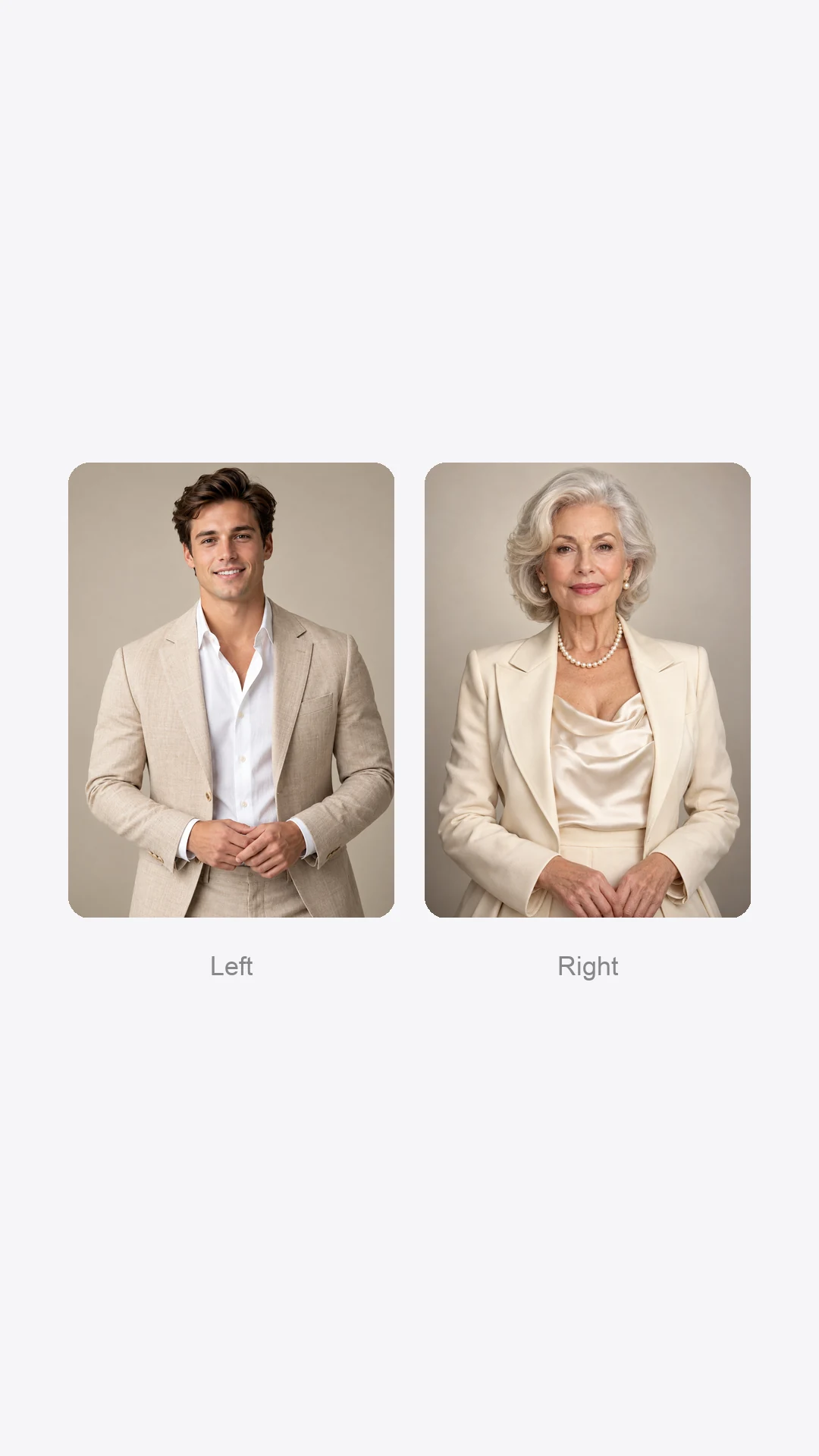
You do not need a prompt on Hotel Lobby AI Generator. Upload two photos, choose the available video settings and generate the video directly. The prompts below are for other tools that expose a text-instruction field alongside character or image references.
Copy-paste Hotel Lobby AI prompt
Use this as a starting point. Replace [LEFT PHOTO] and [RIGHT PHOTO] with the image-reference labels used by your tool.
Reference syntax varies by product. Use the labels shown in the interface rather than copying placeholder names literally.
Short version
Use the short version when the source clip already has the exact scene and motion you want and the model only needs clear casting instructions.
Hotel Lobby AI prompt variations
Stronger identity consistency
Use this when the faces begin correctly but drift or blend later in the clip.
Person and pet
Make the species assignment explicit so the model does not reinterpret the pet as a second human character.
Two pets
This version gives the model a simple instruction to preserve both animals as separate characters.
Rebuild the scene from motion
Use a broader instruction only when your workflow is intended to transfer motion into a newly generated scene rather than edit the original shot locally.
How to use the prompt with a reference-video tool
Choose the reference performance
Start with footage you have permission to use. Both performers should be visible clearly enough that you can follow their left and right positions through the clip.
Add one image for each subject
Use separate, clear photos. Check which label the tool assigns to each image before writing the prompt.
Assign left and right explicitly
Do not rely on upload order alone. State which image belongs to the left performer and which belongs to the right.
Ask the model to preserve only what matters
If the reference already contains the movement and scene you want, preserve them instead of requesting new camera moves, wardrobe, lighting and locations all at once.
Generate and watch the whole result
Identity errors often appear after the opening seconds. Watch the middle and ending before deciding whether the prompt worked.
For a current example of a reference-video workflow, see our Hotel Lobby Higgsfield guide. Higgsfield's official Genjutsu page describes Motion Transfer and Object Swap workflows using video and image references. The available controls can change, so follow the labels shown in the product you are using.
Why does the Hotel Lobby prompt fail?
- The performers swap sides. Repeat the left/right assignment and use the tool's actual image-reference labels. Do not call both subjects simply “the people.”
- The two faces blend together. Add “keep the two identities separate” and describe a few stable visual traits from each reference.
- The face changes halfway through. Ask for identity consistency from the first frame to the last, and use clearer source photos.
- The scene changes too much. Remove unnecessary style instructions. If the reference already has the booth, microphone and camera movement, ask the model to preserve them.
- An extra person appears. Specify exactly two performers and explicitly say not to add extra characters.
- The model ignores one photo. Confirm that both references are attached and that the prompt uses the correct labels for each one.
Prompting can reduce ambiguity, but it cannot guarantee a perfect result. Character consistency also depends on the model, the reference photos and the motion in the source clip.
Do you actually need a prompt for the Hotel Lobby trend?
Not if your only goal is to make the recognizable two-performer Hotel Lobby video from your own photos. A dedicated generator can remove the prompt-writing step.
On Hotel Lobby AI Generator, upload one photo for each performer and choose the available video settings. You do not need to write a casting prompt or configure a separate prompt-based workflow. If you want the full upload-to-download process, follow our two-photo tutorial.
Use a prompt-based workflow when you are working with a third-party tool that requires text instructions and additional references. Use our generator when you want a simpler route from two photos to the finished format.
Hotel Lobby AI prompt questions
What is the best prompt for the Hotel Lobby AI trend?
Start with a simple casting instruction: assign one reference to the left performer and one to the right, keep both identities distinct, and preserve the source motion, camera, timing, orange booth and hanging microphone. Add more detail only when you need to fix a specific problem.
Do I need to mention left and right?
Yes, when your tool is replacing two subjects. Explicit left/right casting helps reduce ambiguity and makes it easier to diagnose a result where the performers switch places.
Can I use the prompt with two photos only?
That depends on the tool. Some prompt-based workflows also require additional inputs. With Hotel Lobby AI Generator, you can start with two photos without writing a prompt.
What do people mean by a “Migos Hotel Lobby AI prompt”?
That search phrase is commonly used to look for instructions that reproduce the recognizable two-performer Hotel Lobby-style setup. This guide describes the visual format in neutral terms. Use only reference media and photos you have permission to use.
Can the prompt stop faces from changing?
It can make the instruction clearer, but it cannot guarantee identity consistency. Strong reference photos, an appropriate model and a source clip with readable subjects also matter.
Can I make the Hotel Lobby AI video without a prompt?
Yes. With our browser-based generator, upload two photos and use the available generation settings. You do not need to write a prompt.
Skip the prompt
Make the Hotel Lobby video from two photos
Upload two photos and generate without configuring a prompt-based workflow yourself.