Which Higgsfield AI tool fits the Hotel Lobby trend?
The Hotel Lobby AI trend puts two performers side by side in a warm orange recording booth, beneath a suspended microphone. Your goal is to cast your own subjects in that performance, rather than simply generate an image of a hotel reception area.
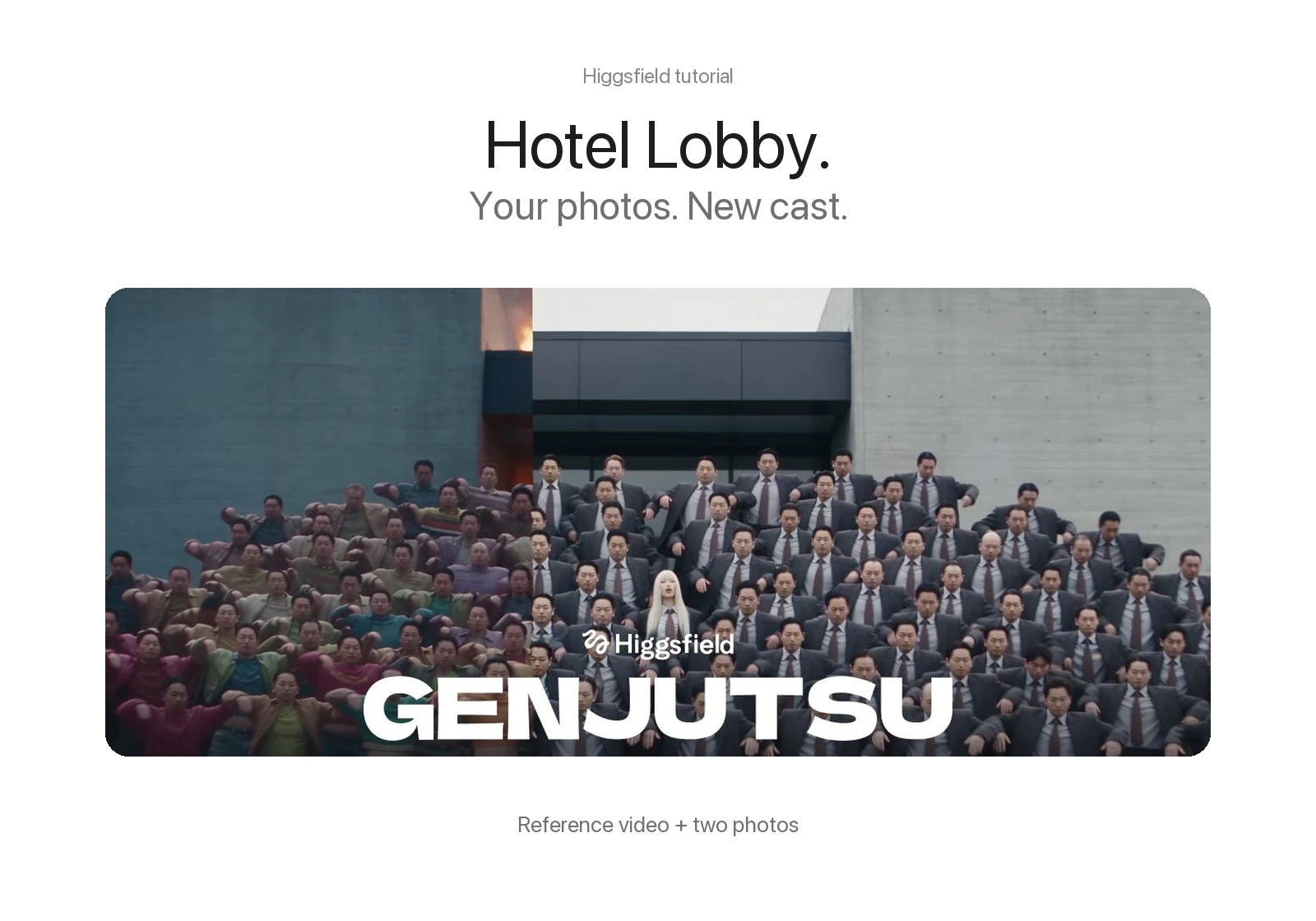
For this kind of edit, start with Higgsfield Genjutsu. Its Motion Transfer workflow uses a clip to guide movement and camera timing; Object Swap targets elements of an existing shot. For replacing the cast while retaining the surroundings, Object Swap is a useful starting point. Use Motion Transfer when rebuilding the scene around the performance is your goal.
This is an independent guide based on Higgsfield’s public documentation. Hotel Lobby AI Generator is a separate service, not a Higgsfield app or partner. We have not run a Higgsfield generation for this article.
Prepare your reference clip and two photos
- A Higgsfield account. Sign in and check the credits available before committing to a render.
- A performance reference. Choose footage you have permission to use. Watch it first: both performers should be visible, and their left and right positions should be easy to follow.
- One photo per subject. Use sharp, well-lit images. A portrait gives face detail; a full-body photo helps communicate clothing and proportions.
- A simple casting plan. Decide which photo belongs on the left and which belongs on the right before uploading.
Remove phone controls, captions and borders from screenshots. Avoid group photos that leave the intended subject ambiguous. If one performer repeatedly crosses in front of the other, a clearer reference clip may be easier to work with.
The official Genjutsu pages describe different input limits across the website and API. Follow the limits shown in the generator you actually use, rather than assuming an API limit applies to the web app.
How to do the Hotel Lobby trend with Higgsfield AI
1. Open Genjutsu and choose your workflow
Go to Genjutsu on Higgsfield AI and open the generator. Choose Object Swap to replace the performers within the existing shot, or Motion Transfer to create a new scene using the source movement. Higgsfield’s official walkthrough explains the upload, references, instructions and review sequence.
2. Add your source performance
Upload the reference video. Scrub through its opening, middle and ending so you know what the subjects do. Starting with a reference that already has the framing you want reduces the number of changes you need to request.
3. Add your left and right performer photos
Upload the two images and check their displayed reference labels. Do not assume a filename determines casting. Write down which label identifies the left subject and which identifies the right.
4. Describe the replacement
Use the prompt below as a starting point. Match its image labels to the labels in your current interface. Keep the instruction focused on casting; asking for a new location, camera move and outfit at the same time makes a problem harder to diagnose.
5. Check the settings and generate
Review the available quality settings and the displayed credit charge. Higgsfield uses credits, and the charge depends on the selected generation settings. Use the figure shown before submission, not a price from an older tutorial. After the job finishes, inspect the result before exporting it.
A starting prompt for the two-performer swap
This is our suggested instruction, not an official Higgsfield preset or a tested guarantee. Replace [LEFT PHOTO] and [RIGHT PHOTO] with the reference labels shown by your generator.
Replace the performer on the left with the subject in [LEFT PHOTO], and the performer on the right with the subject in [RIGHT PHOTO]. Keep their identities distinct throughout the clip. Preserve the source performance’s left/right staging, gestures, camera framing, orange recording-booth background and hanging microphone. Use the appearance and clothing from each subject’s photo. Keep both subjects recognizable and avoid exchanging their faces or outfits. Do not add captions, logos or extra performers.
Do not paste bracketed placeholders unchanged if the interface expects image references. Use its reference picker or mention syntax. The workflow combines a source video, reference images and a replacement instruction.
Treat sound separately. Check the output audio, and only use music or recordings you have the rights to publish. A visual replacement prompt does not establish music rights or guarantee the original soundtrack will be retained.
What to check before downloading
- Identity: Watch both faces throughout the video, not just the opening frame.
- Position: Confirm the left and right subjects stay assigned correctly when they turn or overlap.
- Movement: Look at hands, mouths and clothing during the fastest gestures.
- Framing: Check that neither performer is cut off in the format you plan to share.
- Audio: Listen to the entire result before uploading it elsewhere.
If subjects are swapped, first correct the reference assignment and simplify the casting instruction. If a face drifts, try a clearer photo with less obstruction. If the background changes unexpectedly, remove conflicting scene instructions. Make one change at a time so you can tell what helped; further generations may cost additional credits.
Download the approved version and keep a local copy. For TikTok or Reels, inspect how the clip fits a vertical frame before cropping a landscape result—you do not want to lose one half of the duo.
Prefer a ready-to-use Hotel Lobby setup?
If you would rather start with two photos without preparing a reference clip, our Hotel Lobby AI Generator provides the performance setup. It is a separate service with its own pricing and credits. For an overview of our single-video and Studio options, read What app or AI tool can make the Hotel Lobby trend? For the upload and download steps, see our own-photo tutorial.
Hotel Lobby Higgsfield: common questions
Can Higgsfield AI make the Hotel Lobby trend?
Genjutsu provides the reference-video and character-editing tools for attempting this kind of two-performer replacement. The result depends on your source footage, photos and instructions; this guide does not promise a perfect recreation.
Is there an official Hotel Lobby preset?
We have verified the Genjutsu workflow, not a dedicated official Hotel Lobby preset. Start from the official Genjutsu page rather than relying on an unverified preset link.
Do I need two photos?
For two custom performers, prepare one clear photo for each subject and assign their reference labels explicitly. A group photo can make casting less clear.
Can I make the Hotel Lobby trend with Higgsfield AI for free?
Generation uses Higgsfield credits. Check the required credits and your account’s current access before rendering. This article does not assume a free generation or a fixed subscription price.
Is this website connected to Higgsfield?
No. Hotel Lobby AI Generator is an independent service. Higgsfield accounts, payments and credits do not work on this site.
Two photos. Your own cast.
Make your Hotel Lobby AI video
Prefer a ready-to-use performance setup? Start with two clear photos.